

When people prepare a passport photo for an online application, one of the first requirements they encounter is the file format.
Most government agencies ask applicants to upload their image as a JPEG (.jpg or .jpeg) file. Because JPEG is one of the world's most common image formats, many users assume that any JPEG image will satisfy the requirement.
In reality, that assumption is responsible for thousands of rejected passport photo submissions every year.
A passport photo can have the correct file extension and still fail because of excessive compression, incorrect resolution, unsupported color profiles, poor image quality, or technical characteristics that interfere with biometric verification. Modern passport systems evaluate much more than whether the file ends in ".jpg."
Understanding what governments actually expect from a JPEG passport photo requires looking beyond the file format itself. It involves understanding how digital images are encoded, how compression changes image data, and why seemingly invisible quality loss can affect facial recognition systems.
This guide explains the technical requirements behind JPEG passport photos and highlights the mistakes that most applicants never realize they are making.
Why Governments Prefer JPEG for Passport Photos
JPEG has remained the standard image format for digital passport applications because it offers a practical balance between image quality, compatibility, and file size.
Government agencies process millions of passport and visa applications every year. Their systems need an image format that can be opened reliably across different operating systems, software platforms, and document processing environments.
JPEG meets this requirement because it is universally supported by cameras, smartphones, scanners, and web browsers.
Another advantage is efficiency. Compared with uncompressed image formats, JPEG files are much smaller while still retaining enough visual detail for identity verification.
Smaller files upload faster, consume less storage, and simplify processing within government databases.
However, JPEG achieves this efficiency through lossy compression, and this is where many applicants unknowingly introduce problems.
JPEG Is a File Format, Not a Quality Standard
One of the most common misconceptions is that "JPEG" automatically means "high quality." It does not.
JPEG only describes how image data is stored and compressed. Two JPEG files can have identical dimensions and the same file extension while differing dramatically in image quality.
For example:
One JPEG may be saved at 95% quality, preserving fine facial detail.
Another may be saved at 30% quality, producing visible artifacts and blurred edges.
To the human eye, both files may look acceptable on a smartphone screen. To a biometric verification system, they are very different images.
This distinction is important because governments evaluate the quality of the image itself, not simply its file type.
Understanding Lossy Compression
Unlike formats such as PNG or TIFF, JPEG reduces file size by permanently removing some image information.
The compression algorithm is based on the principle that the human eye is less sensitive to small variations in color and brightness. By discarding data that is considered visually insignificant, JPEG can dramatically reduce storage requirements.
While this works well for everyday photography, it has limitations for identity documents.
Passport verification systems rely on subtle facial features, including:
Eye contours
Nose edges
Lip boundaries
Hairline definition
Skin texture
Contrast transitions
Excessive compression can soften or distort these details. Even if the image still looks clear to a person, the mathematical information used by biometric algorithms may have been degraded.
This is why saving a passport photo repeatedly as a JPEG is discouraged. Each time the file is re-saved, additional image data may be discarded, gradually reducing quality through what is known as generation loss.
Why File Size Alone Does Not Indicate Quality
Many applicants judge image quality based on file size. A larger file is often assumed to be a better image.
This is not always true.
A JPEG file can become large because:
It has high resolution.
It uses a higher quality compression setting.
It contains embedded metadata.
It includes a wide color profile.
Conversely, a small file may still meet official requirements if it has been compressed appropriately without sacrificing important facial detail.
Government agencies therefore specify both minimum image quality and acceptable file size ranges. These requirements ensure that uploaded photos contain enough visual information for reliable processing while remaining manageable for online submission systems.
The goal is not to create the largest possible file but to preserve the right balance between detail and efficiency.
Resolution Is More Important Than Many People Realize
JPEG quality and image resolution are closely related, but they are not the same thing.
Resolution refers to the number of pixels in the image. A higher-resolution image contains more information that biometric systems can analyze.
For example, a 600 * 600 pixel passport photo contains four times as many pixels as a 300 * 300 pixel image.
When the original resolution is too low, compression has a much greater impact because there is already limited image data available. Enlarging a low-resolution JPEG cannot restore lost detail; the software simply estimates new pixels, often resulting in blurred edges and reduced sharpness.
For this reason, it is always better to begin with a high-resolution original photograph and reduce it to the required dimensions rather than attempting to enlarge a small image.
Why Color Profiles Matter
Another issue that many applicants overlook is the color profile embedded within the JPEG.
Digital cameras and smartphones may save images using different color spaces, including:
sRGB
Adobe RGB
Display P3
Most government systems are designed around the standard sRGB color space because it provides consistent color reproduction across different devices and software.
If an image uses an unsupported or uncommon color profile, the uploaded photo may display differently than intended or encounter compatibility issues during processing.
While color profile errors are less common than compression problems, they illustrate that file format alone does not guarantee compatibility.
Metadata Can Affect Compatibility
Every JPEG file contains metadata in addition to the visible image.
This metadata may include:
Camera model
Lens information
Capture date and time
Device orientation
GPS location
Editing software
Most metadata does not affect the appearance of the photograph, but some online systems automatically remove or rewrite metadata during upload.
In rare cases, corrupted metadata or unsupported tags can interfere with image processing. This is why many passport photo tools export clean JPEG files containing only the information necessary for the application.
Why Smartphone Photos Sometimes Fail Even When They Are JPEGs
Modern smartphones usually save images as JPEG or HEIC. When a HEIC image is converted to JPEG automatically, additional processing often occurs.
The phone may apply:
Noise reduction
HDR processing
Skin smoothing
Sharpening
Dynamic range adjustments
These computational photography techniques are designed to improve visual appearance, but they may alter the natural facial characteristics that biometric systems expect.
A technically valid JPEG can therefore fail because the image itself has been modified before it was ever uploaded.
Common JPEG Mistakes That Lead to Passport Photo Rejection
Many passport photo problems are caused by a small number of avoidable mistakes:
Saving the image repeatedly, reducing quality with each export.
Using an excessively low JPEG quality setting to create a smaller file.
Enlarging a low-resolution image instead of starting with a high-resolution original.
Uploading a converted screenshot rather than the original photograph.
Assuming that any JPEG file automatically meets government standards.
These issues are often invisible to the applicant but can become significant during automated verification.
How to Prepare a JPEG Passport Photo Correctly
Creating a compliant JPEG passport photo begins long before exporting the file.
Capture the image under good lighting using the highest available camera resolution. Avoid beauty filters, portrait effects, or aggressive editing that changes natural facial detail.
Crop the image according to the document's specifications before resizing, and export it only once using a high-quality JPEG setting to minimize compression.
Finally, confirm that the file meets the required dimensions, file size, and image quality standards for the country and document you are applying for.
This workflow preserves as much original image information as possible while producing a file that is both efficient and compatible with online submission systems.
Using ePassport-Photo to Generate a Compliant JPEG
For many applicants, manually checking resolution, dimensions, compression settings, and facial positioning can be confusing.
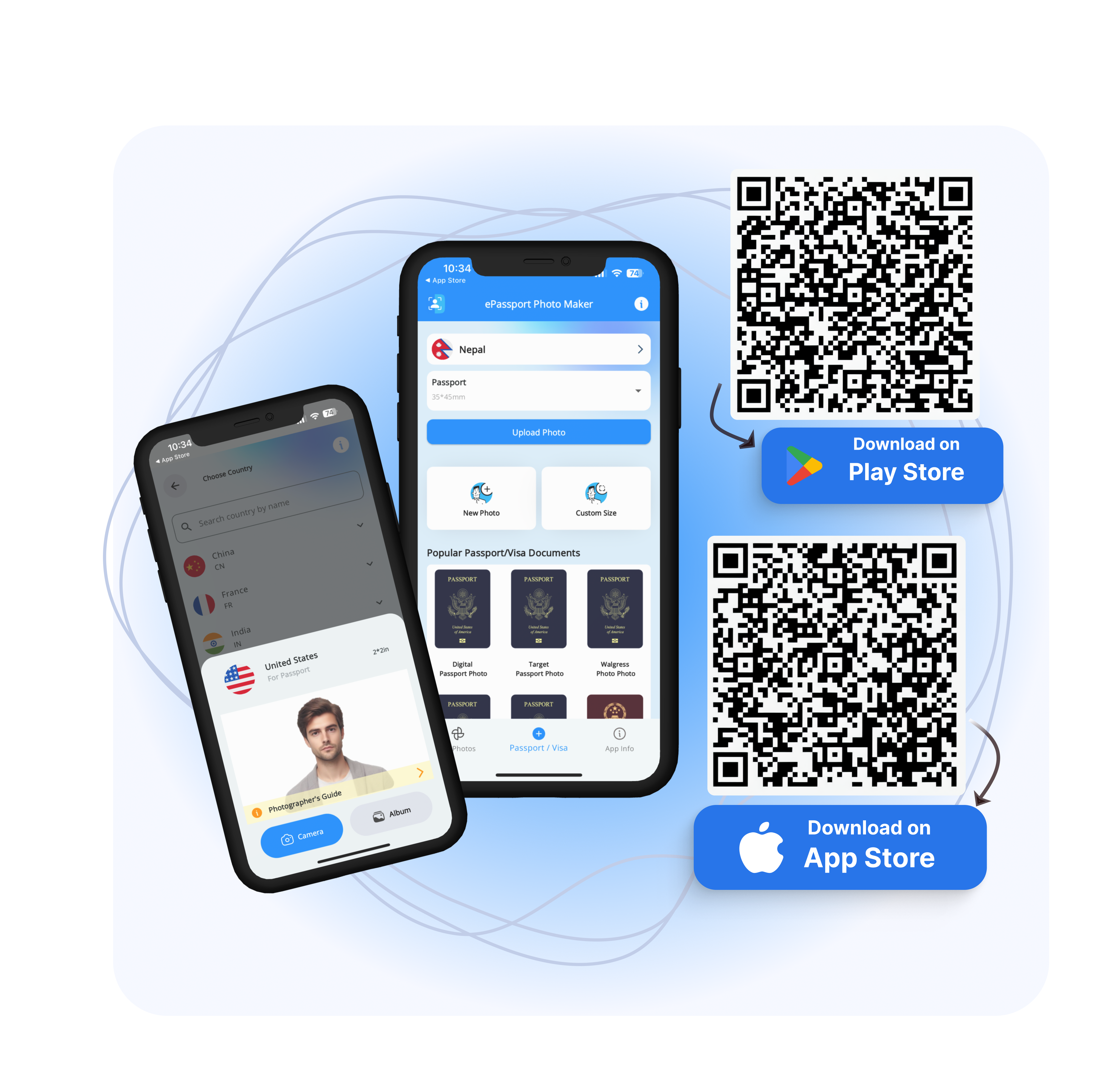
Platforms such as ePassport-Photo.com simplify this process by preparing passport photos according to official document specifications. Instead of requiring users to calculate pixel dimensions or experiment with JPEG quality settings, the platform helps generate a properly formatted JPEG image that is suitable for passport, visa, Green Card, and other identification applications.
This reduces the likelihood of common file-format mistakes while helping users maintain image quality throughout the preparation process.
Conclusion
JPEG is the preferred format for most online passport applications because it combines broad compatibility with efficient file sizes. However, using the correct file format alone is not enough.
Image quality, compression settings, resolution, color profiles, and facial detail all play critical roles in determining whether a passport photo meets modern biometric and technical standards.
By understanding how JPEG compression works and following best practices when preparing your image, you can significantly reduce the risk of rejection.
For applicants who want a simpler workflow, using a dedicated passport photo tool can help ensure that the final JPEG is both technically compliant and suitable for official document submissions.
Visit EPassport-Photo
Download the App | Android | IOS |
Frequently Asked Questions
Is JPEG the only format accepted for passport photos?
Most government agencies request JPEG because it is widely supported and efficient, although some systems may accept PNG for specific applications. Always follow the requirements for the document you are submitting.
Does converting a PNG to JPEG reduce quality?
The first conversion generally has minimal impact if saved at a high quality setting. Repeated conversions and re-saving, however, can introduce cumulative compression loss.
Why is my JPEG passport photo blurry?
Blurriness is often caused by excessive compression, low original resolution, repeated editing, or enlarging a small image beyond its original size.
Can I reduce the file size without lowering quality?
Moderate compression can reduce file size with little visible impact, but excessive compression may remove important facial details needed for biometric verification.
Does the ".jpg" extension guarantee that my photo will be accepted?
No. Acceptance depends on the overall image quality, resolution, dimensions, compression level, and compliance with the application's technical requirements, not simply the file extension.